When should you compress an image?
Image compression is useful whenever a website rejects a file because it is too large. Common examples include job and admission forms, profile photos, document portals, website uploads, ecommerce images and email attachments.
How to compress an image with SmallPNG
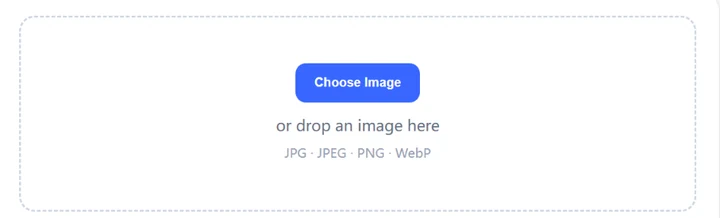
- 1Choose a JPG, JPEG, PNG or WebP image.
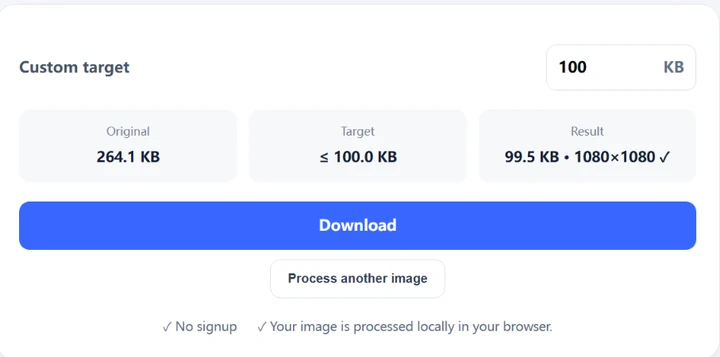
- 2Enter the maximum file size you need in KB.
- 3SmallPNG searches for a result that fits the target while keeping the highest practical quality.
- 4Download the processed image and use it in the form or website that requested the limit.
SmallPNG compression walkthrough
The screenshots below show the current SmallPNG single-image workflow using a real browser session and a 100 KB target.

How does target-size compression work?
For JPG and WebP, SmallPNG first searches encoding quality. If the target still cannot be reached, it gradually reduces image dimensions. PNG uses browser PNG encoding and may need smaller dimensions for aggressive targets. A target of 100 KB means 100 KB or smaller, not exactly 100.00 KB.
Supported image formats
| Format | Supported |
|---|---|
| JPG / JPEG | ✓ |
| PNG | ✓ |
| WebP | ✓ |
Are images uploaded to SmallPNG?
No image-processing upload is required for the supported v1 formats. The image is decoded, processed and downloaded from your browser.
Common target sizes
Compression questions
Does compression always reduce image dimensions?
No. JPG and WebP first try to reach the target by changing encoding quality. Dimensions are reduced only when needed.
Why can a very small target look softer?
A very small file limit may not contain enough data for the original resolution and quality, so the browser may need to reduce dimensions or encoding quality.
What target should I choose?
Use the maximum size required by the destination form or website. If it says 100 KB maximum, choose 100 KB.
Ready to compress an image?
Open the image compressor, choose your target size and process the file directly in your browser.
Compress an Image Now